- Free and open source
- No account
- No telemetry
Your Predator's keyboard, the way you want it
RaptorSense is a free alternative to PredatorSense and NitroSense. 147 lighting effects, animations you paint yourself, lighting that follows your music and your typing, plus fans and power modes. Built by a student who found PredatorSense too limited.
New in 1.9: more keyboards to try, and it can run beside PreySense. Tested on the Helios 16 PH16-71 and the Nitro 5 AN515-57.
Everything PredatorSense should have had
One small app in the tray. It reads your laptop's model when it starts and shows only what works on it.
147 effects, all live
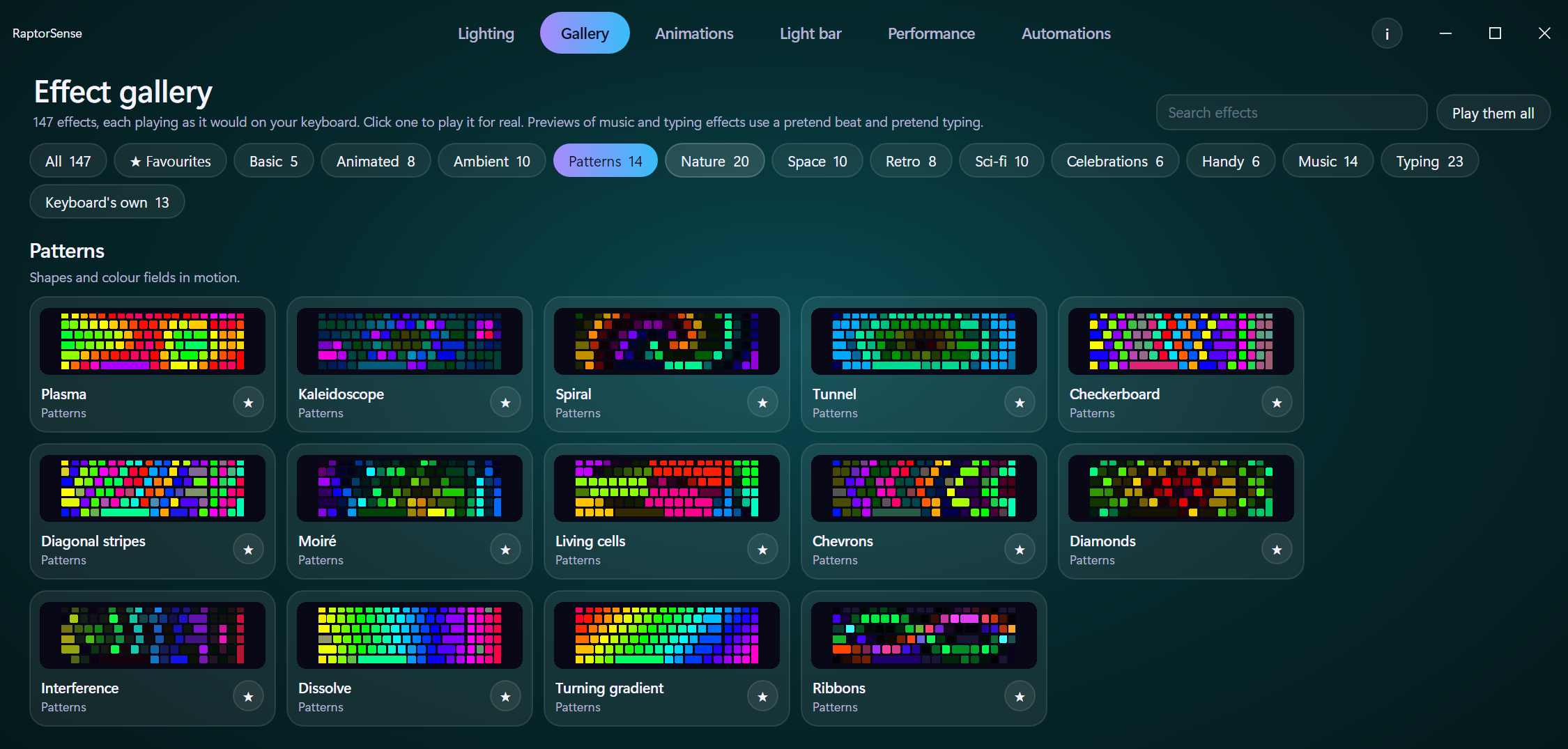
Waves, fire, rain, radar, plasma, falling blocks and many more, in a gallery where every effect plays at once on its own little keyboard. One click puts it on the real one.
Your own animations
Paint frames key by key, set how long each stays and fades, and loop it. Start from a ready-made one, undo freely, and share it as a file.
Music and typing
14 effects move with whatever your PC is playing, read from the sound output, never the microphone. 23 more ripple, spark and burst from the keys you press.
Fans and power
Power profiles, fans on Auto, Max or speeds you set, live temperatures, the rear light bar, and battery health. Only changed on models where they've been tested, and left alone if another app has them.
Automations
When a game opens, on battery, while music plays or when you step away: switch the lighting, power mode and fans, and put them back afterwards.
The keyboard's own keys
The PREDATOR key opens RaptorSense, and Fn+F11 and Fn+F12 keep dimming and brightening the keys. In English, German, Spanish, French, Brazilian Portuguese or Hindi.
Will it work on my laptop?
Two laptops are tested. Since 1.9, more keyboards can be tried. Everywhere else RaptorSense is careful: it lights only keyboards it knows, and reads fans and power without changing them until that model has been checked.
Tested by us
Lighting and fans work. On the Helios, power modes and the light bar too.
- Predator Helios 16 PH16-71
- Nitro 5 AN515-57
Should be found by itself
Four zones on an ENEK5130 chip. No admin rights. Not tried by us.
- Helios Neo 16S AI PHN16S-71
- Helios Neo 16 AI PHN16-73
- Nitro V 16S AI ANV16S-41
- Nitro 16S AI AN16S-61
Try the keyboard test
Four zones through the firmware. Changes only colours. Not tried by us.
- Helios Neo 16 PHN16-71
- Helios Neo 16 PHN16-72
- Helios Neo 14 PHN14-51
- Helios Neo 18 PHN18-71
- Helios 300 PH315-52
- Helios 300 PH315-53
- Helios 300 PH315-54
- Helios 300 PH315-55
- Helios 300 PH317-53
- Nitro 5 AN515-45
- Nitro 5 AN515-55
- Nitro 5 AN515-56
- Nitro 5 AN515-58
- Nitro 5 AN517-41
We need a report
Nobody has told us yet which keyboard these have.
- Predator Helios 16 PH16-72
- Predator Helios 16 AI PH16-73
- Predator Helios 18 PH18-71
- Predator Helios 18 PH18-72
- Predator Helios 18 AI PH18-73
On the tested laptops
| Predator Helios 16 PH16-71 | Nitro 5 AN515-57 | |
|---|---|---|
| Keyboard lighting | Every key on its own, 60 fps, no admin rights | Four zones, about ten changes a second |
| Effects | 96, plus 14 music and 23 typing effects, and the keyboard's 13 built-in ones | 16 made for four zones, and the keyboard's 5 built-in ones |
| Your own animations | Key by key | Zone by zone |
| Fans and temperatures | Works | Works |
| Power modes | Works | Not checked on this model yet |
| Rear light bar | Works | The laptop has none |
| PREDATOR and Fn brightness keys | Works | Not yet |
Another Acer?
Per-key lighting works on keyboards 04F2:0117, 011A and 0119. The laptop report shows which keyboard you have with one command, and it's how new models get added.
Using PreySense?
While PreySense runs, RaptorSense does lighting only and leaves fans, power modes and the PREDATOR key to it. Set your lighting in one app, because both can light the keyboard. We haven't tried it with PreySense itself yet.
On Linux?
A preview lights the Helios's per-key keyboard, but it hasn't driven a real keyboard yet. If you run Linux on a Predator, testing it helps a lot.
Made an animation? Share it.
The animations page plays everything people have shared, right in your browser. Download one and import it in the Animations tab, or export yours and put it up for everyone.
Questions
Windows says "Windows protected your PC". Is it safe?
The app isn't code-signed (that costs money every year), so Windows warns about it the first time. Choose More info, then Run anyway. Every release lists the zip's SHA-256 so you can check your download, and all the code is on GitHub to read or build yourself.
Do I need to close PredatorSense?
Yes. Both try to drive the keyboard, so close PredatorSense (or NitroSense) before you start RaptorSense. PreySense can stay open: RaptorSense then does lighting only.
What does the keyboard test do?
It shows red, green, blue and white across the keyboard, left to right, and asks what you see. RaptorSense uses the keyboard only if you say it's right. It changes nothing but colours, and needs the small helper from the Performance tab. The colours may stay until the laptop restarts.
Does it send anything anywhere?
No. There are no accounts and no telemetry. Typing effects learn only which key position was pressed, never the characters. Music effects read your PC's sound output, never the microphone, and only while such an effect is in use.
Does it need administrator rights?
Not for a per-key keyboard, or one with an ENEK5130 chip. Fans, power modes and the light bar go through a small helper you install from the Performance tab, which asks once. On the Nitro 5 and the keyboards in the test, lighting goes through that helper too.
How do I install, update or remove it?
Extract the zip to a folder you'll keep and run RaptorSense.exe. To update, quit it from the tray and extract the new zip over the old folder; your profiles and animations stay. To remove it, run Remove fan control.cmd if you installed fan control, then delete the folder. So website links stop looking for it, also run reg delete HKCU\Software\Classes\raptorsense /f.
Is this made by Acer?
No. It's an unofficial community project, not affiliated with or endorsed by Acer.